
OKTA
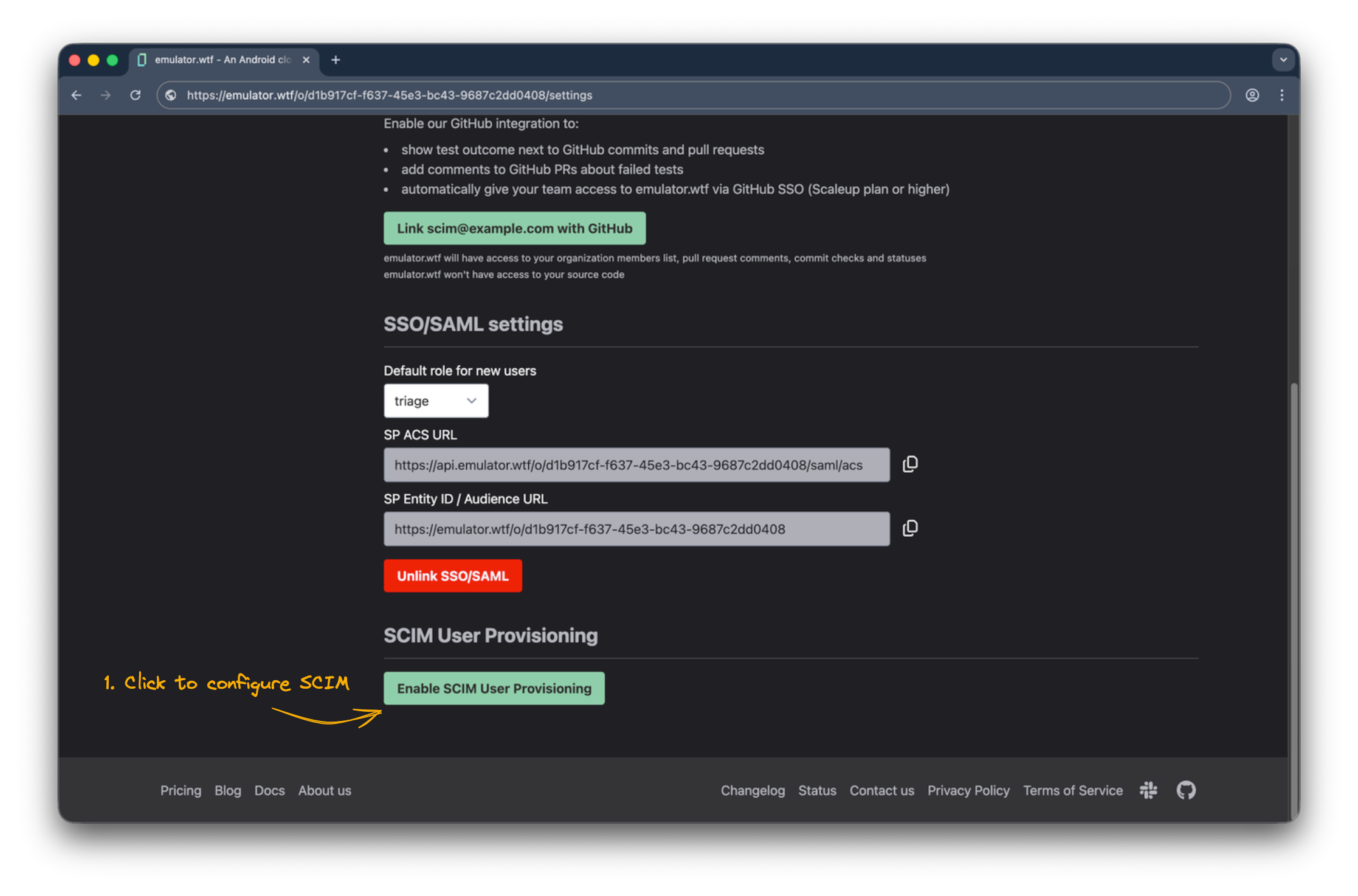
Start configuring SCIM from the Settings page in the emulator.wtf web app, scroll to the SCIM section and click Enable SCIM User Provisioning. Note that the SCIM section is only visible if you have already configured SSO/SAML.
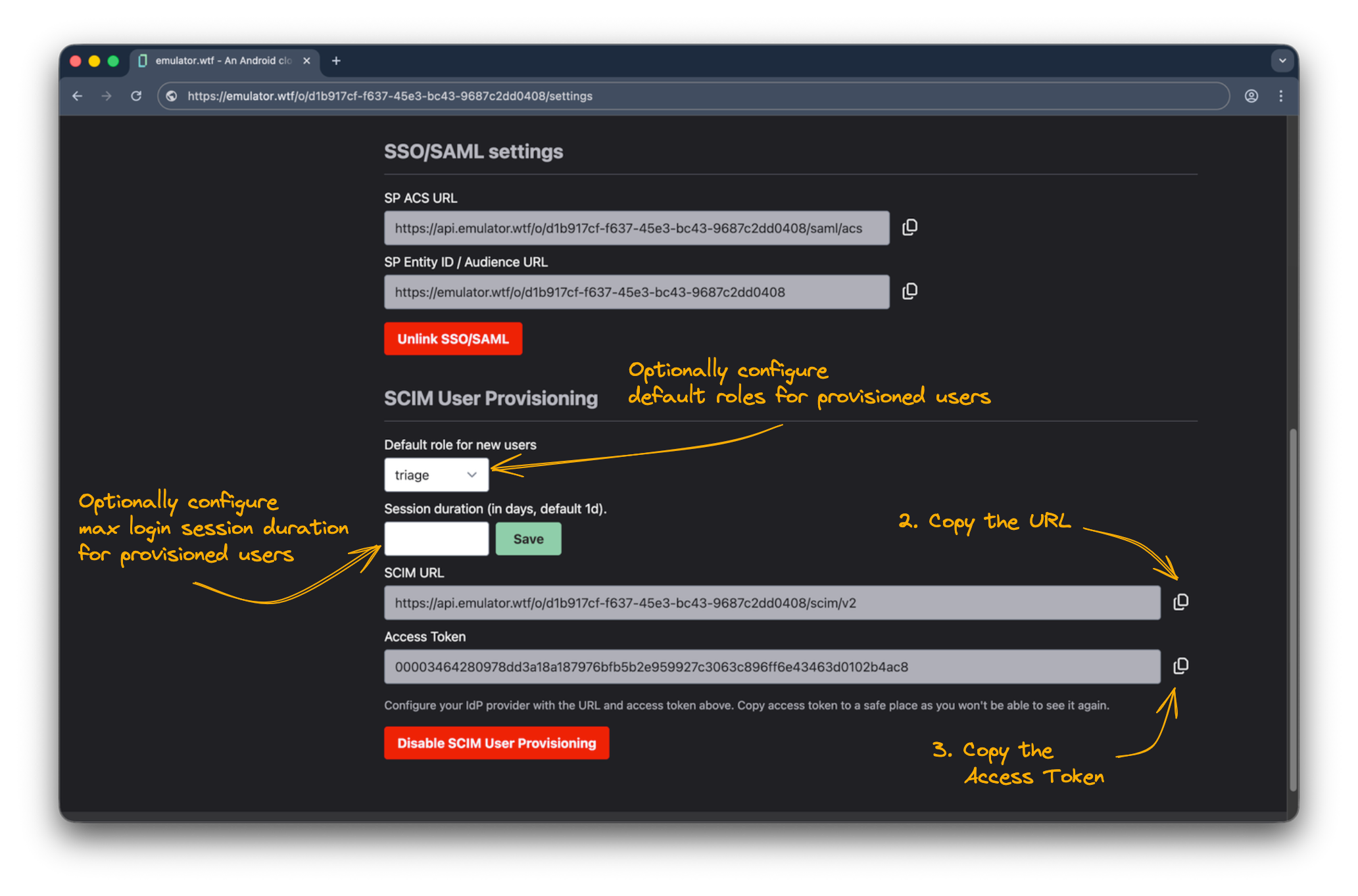
Copy the access token to a safe place as you will need it later when configuring OKTA. You can regenerate the token later if needed, but you won’t be able to see it again.
The next section assumes you have already configured SSO/SAML integration for emulator.wtf in OKTA. If you haven’t, please follow the OKTA SAML configuration guide to finish the SAML configuration.
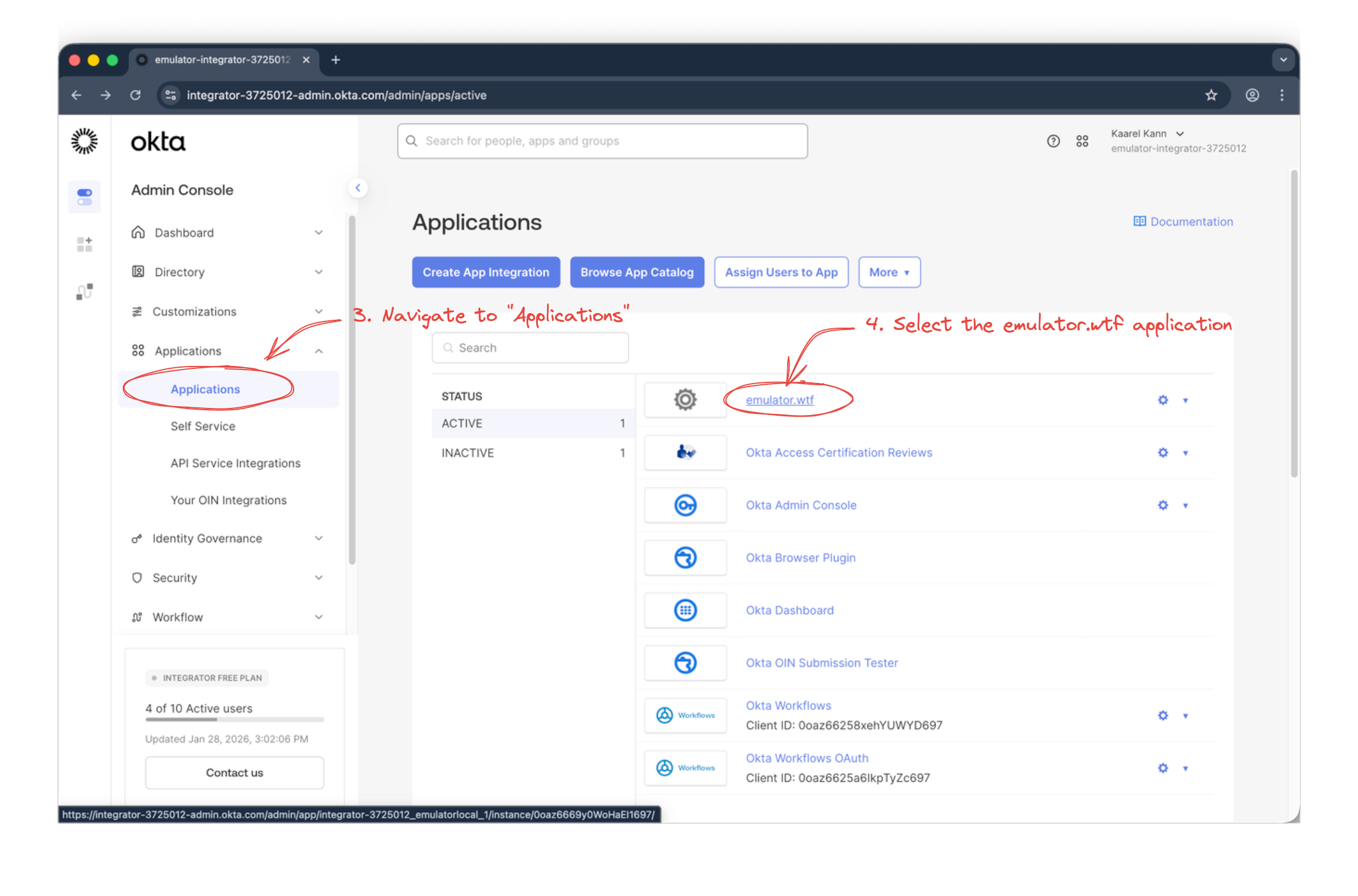
In OKTA, navigate to Applications -> Applications and click on the application you created when configuring SAML (e.g. emulator.wtf).
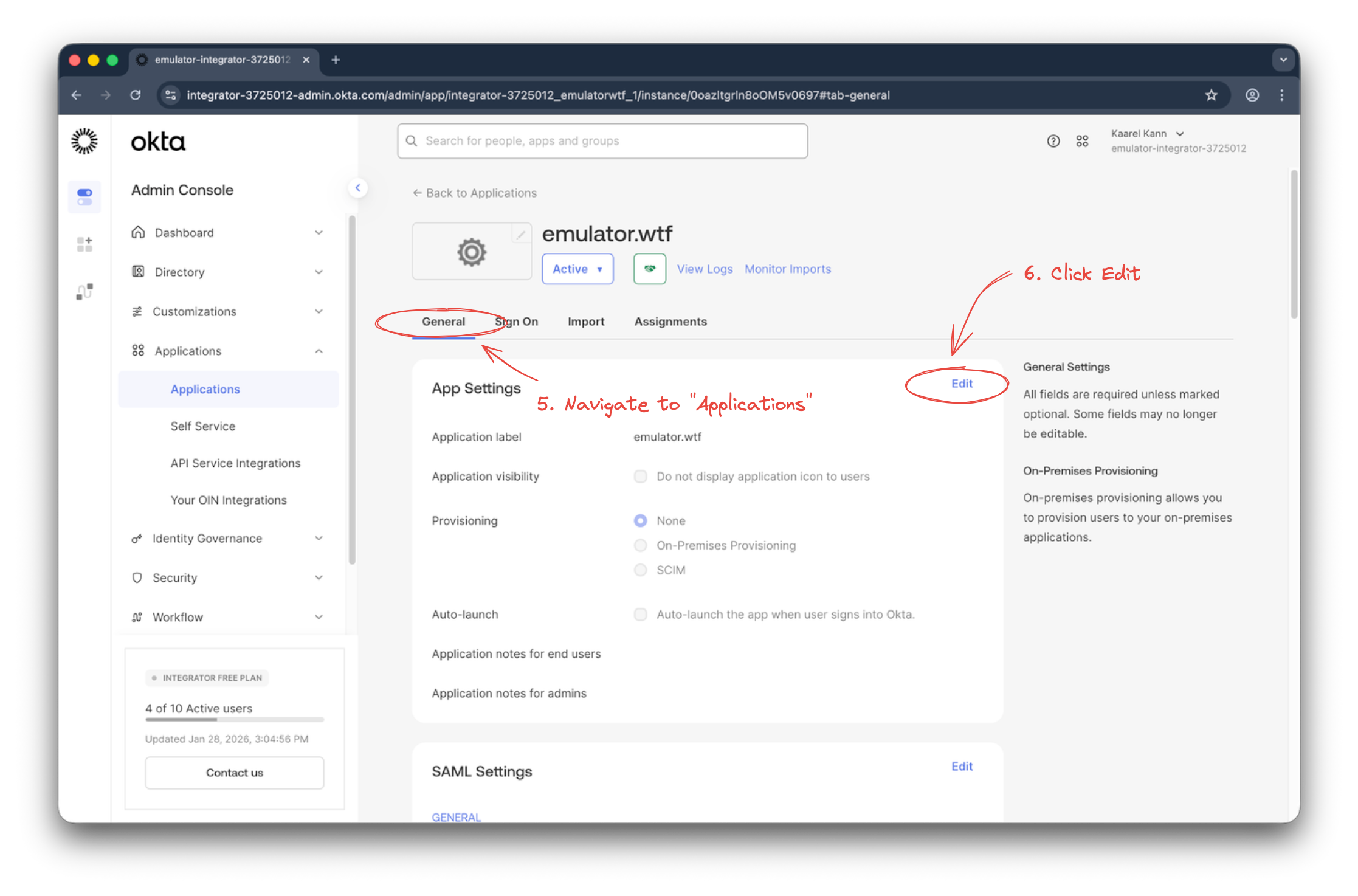
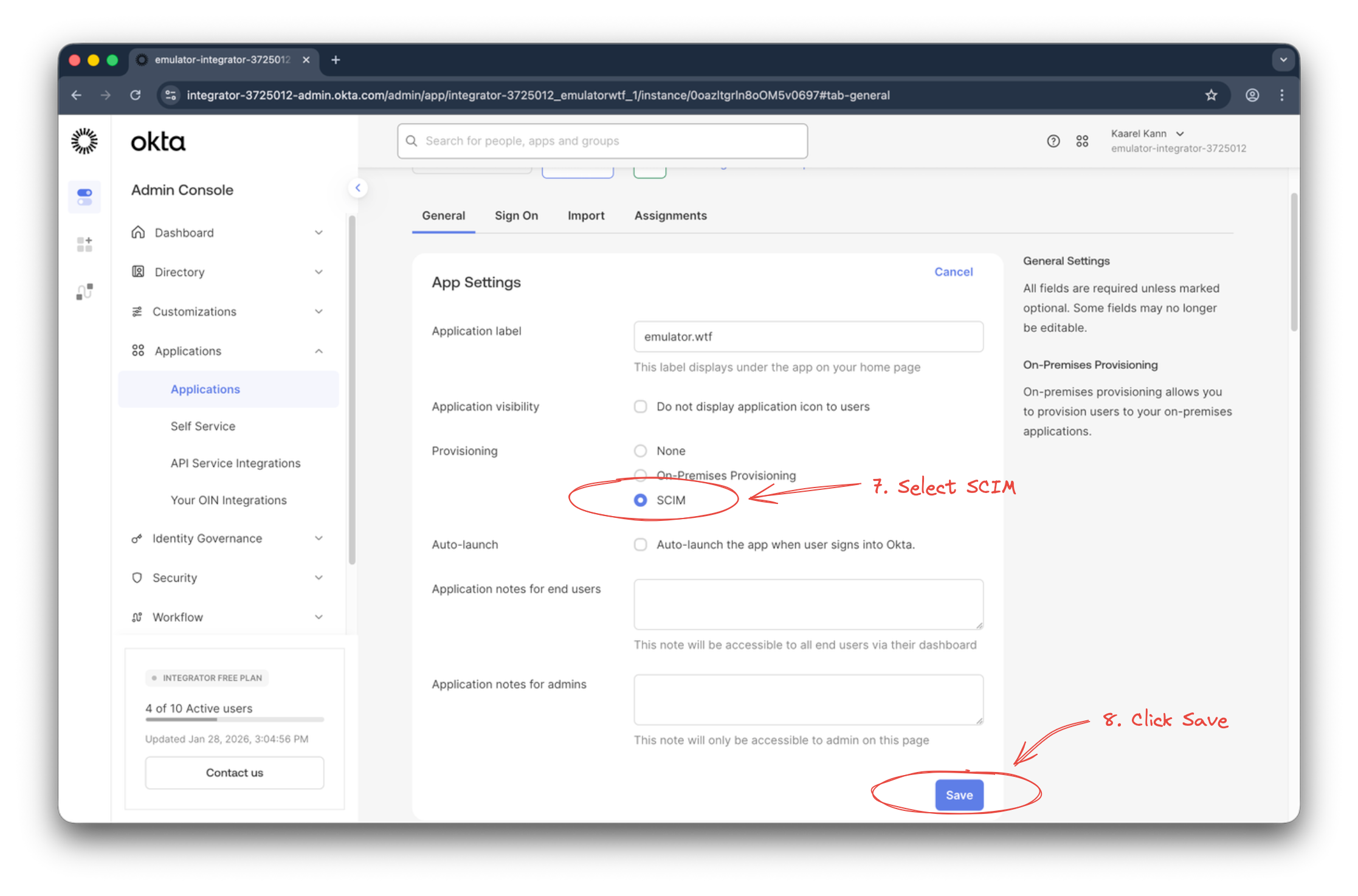
Navigate to General tab and click on the Edit button.
Select SCIM as the Provisioning method. And click Save.
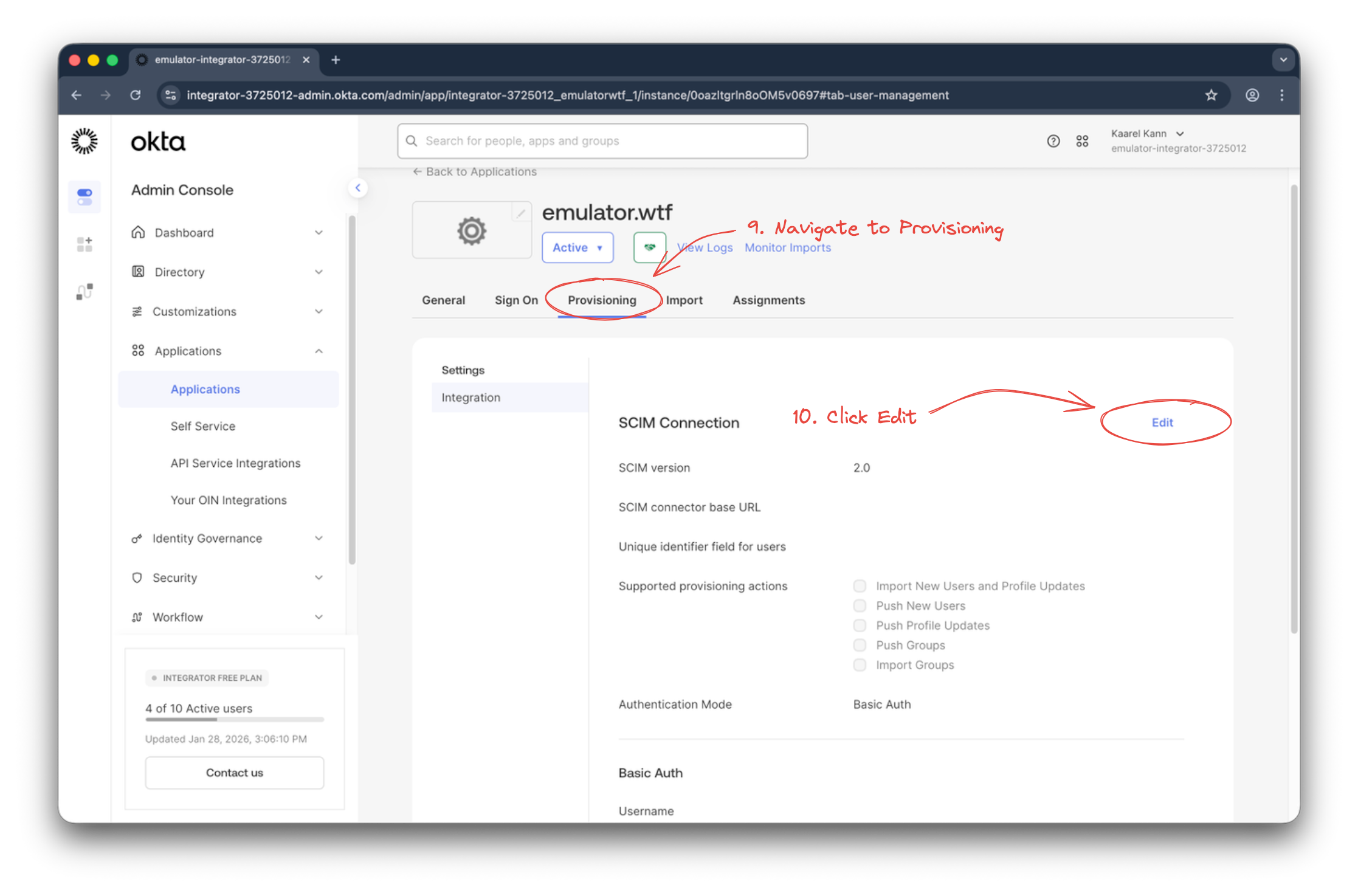
Navigate to the Provisioning tab and click on the Edit integration button.
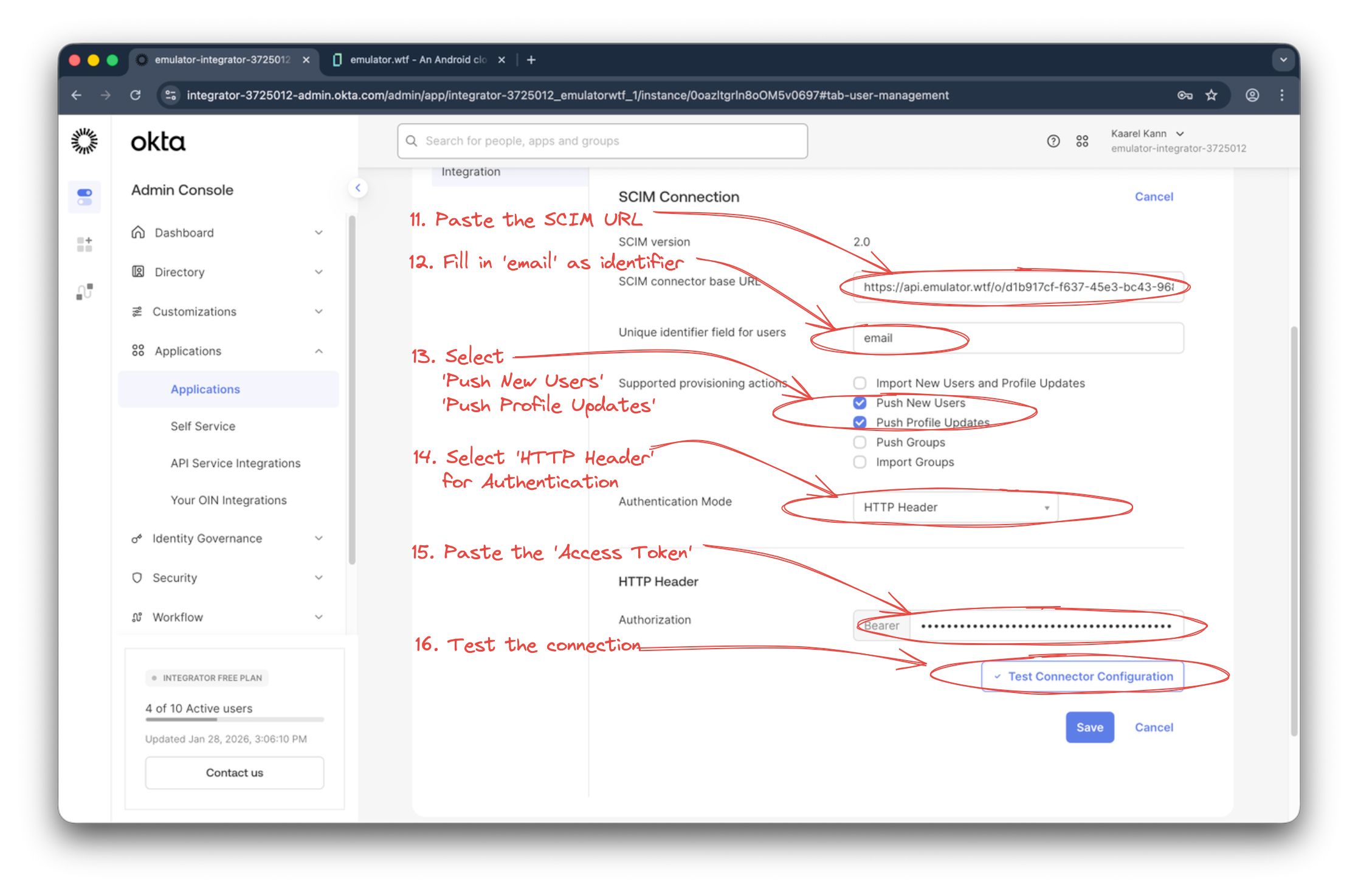
Copy over the scim url from emulator.wtf SCIM configuration into OKTA:
- SCIM URL -> SCIM connector base URL
Fill in the Unique identifier field for users as email. Select Push New Users and Push Profile Updates from the Supported provisioning actions. Choose HTTP Header as the Authentication Mode. Copy over the access token from emulator.wtf SCIM configuration into OKTA:
- Access Token -> Token
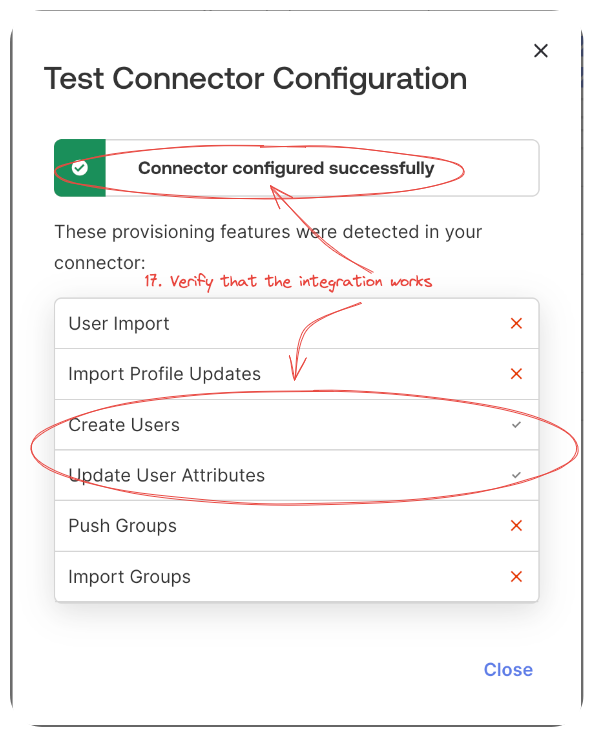
Click Test Connector Configuration to verify that OKTA can connect to emulator.wtf SCIM endpoint.
If the test is successful, click Save.

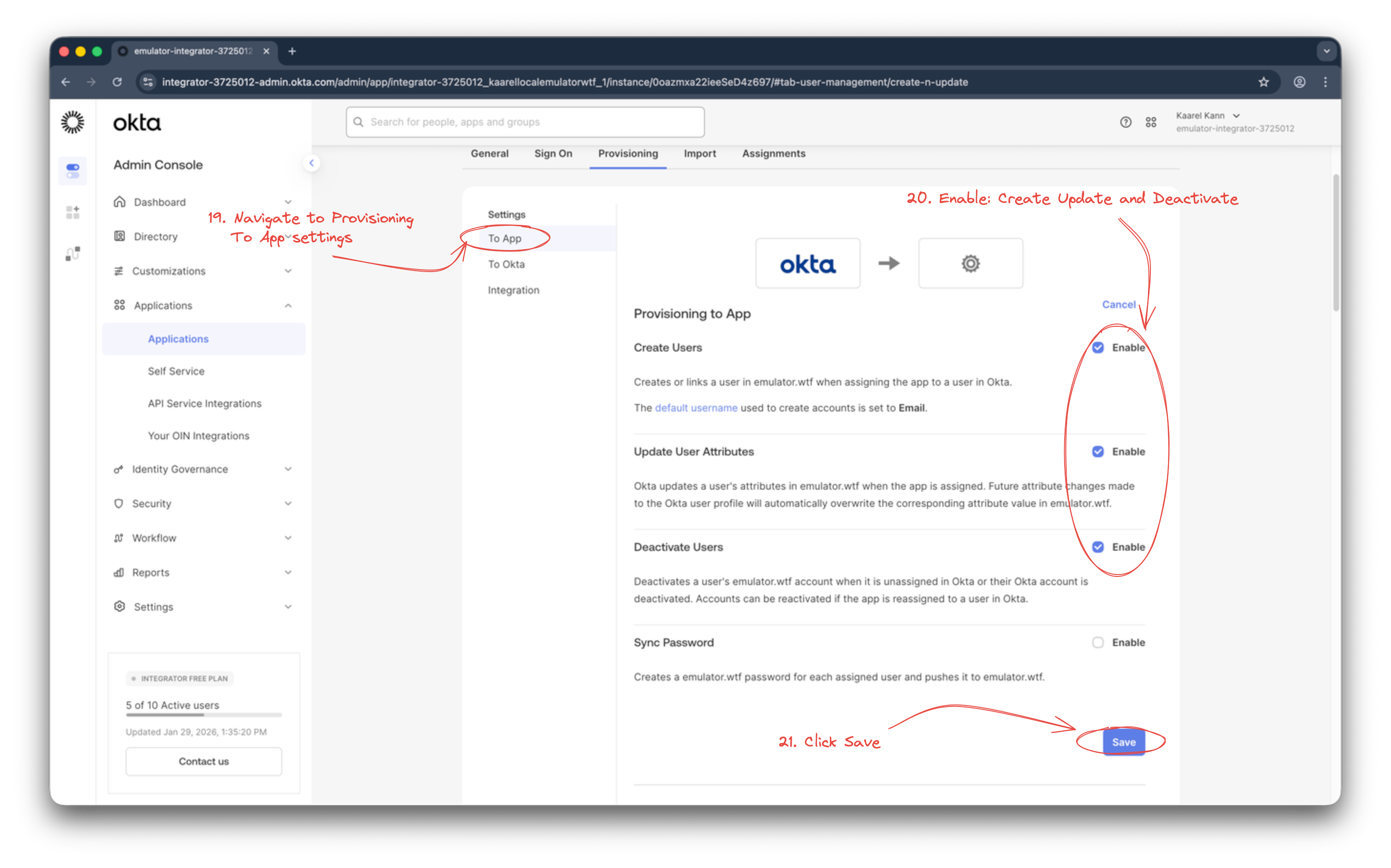
Next you need to enable PUSH settings for the integration by configuring Provisioning To App section. Enable Create Users, Update User Attributes, Deactivate Users and click Save.
You’ll also need to assign a group or a list of users to the emulator.wtf application. This depends on your OKTA structure, but you might have a group such as Mobile Developers or Engineering that could be a good fit.
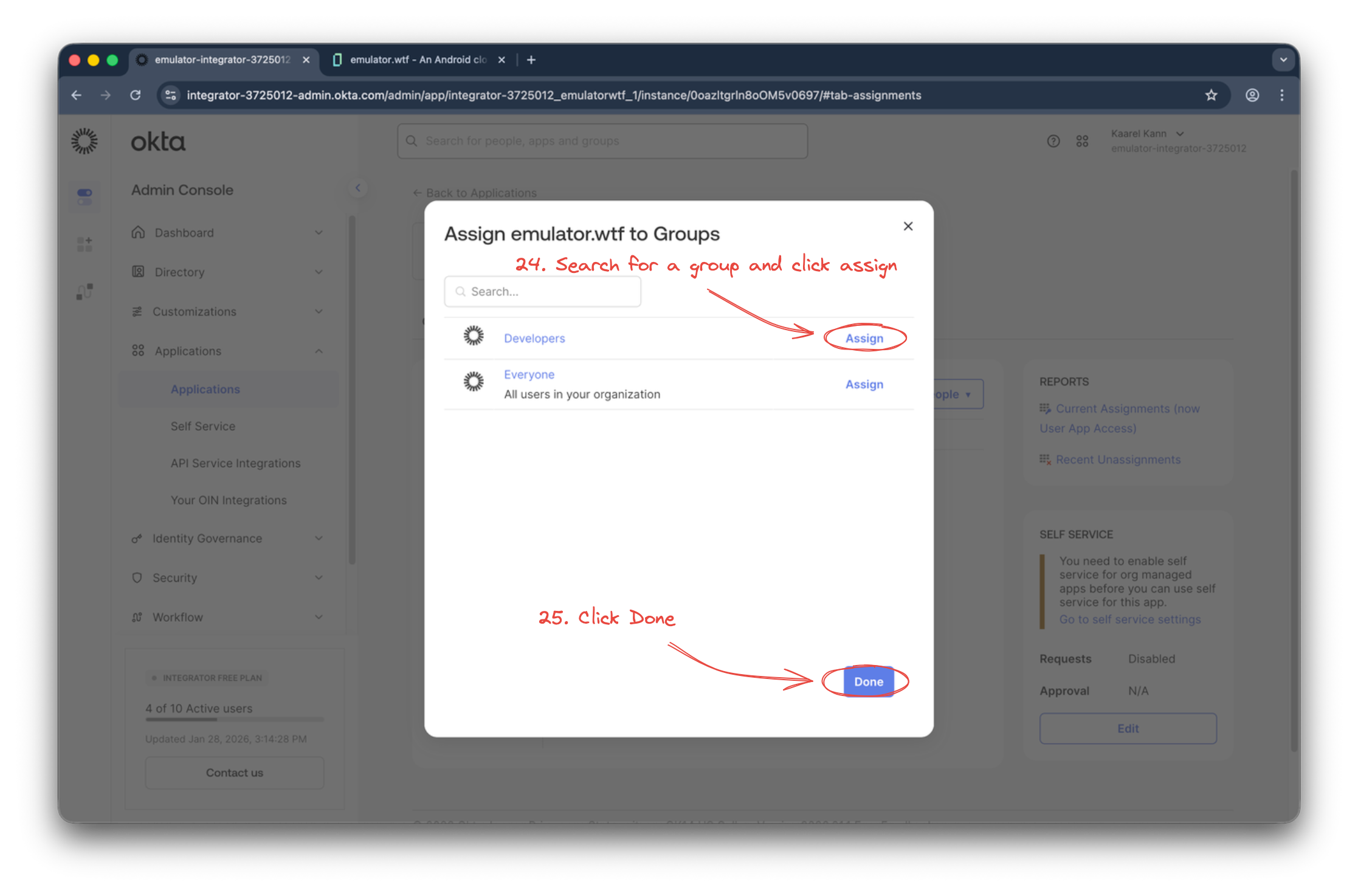
Start by going to the Assignments tab, click on the Assign dropdown and select Assign to Groups.

Add the group you want to give emulator.wtf access by searching for it and clicking the Assign button. When all the groups have been added, click Done.
SCIM user provisioning with OKTA is now enabled for your organization! 🎉